
Stop Drowning Your AI Assistant: How to Build a Context-Saving MCP Server for VS Code Copilot

If you are using VS Code Copilot’s Agent Mode (especially if you are riding on the free GitHub Copilot Student Plan, though the Models have been severely depleted), you already know it feels like a free superpower given by your Student ID. You give it a high-level goal, and it executes terminal commands, writes code, and debugs errors entirely on its own.
But as of June 1, 2026, GitHub changed the rules of the game. Copilot shifted away from simple monthly request limits to a strict, usage-based consumption model fueled by GitHub AI Credits.
This shift has exposed Agent Mode’s glaring Achilles’ heel: Context Bloat.
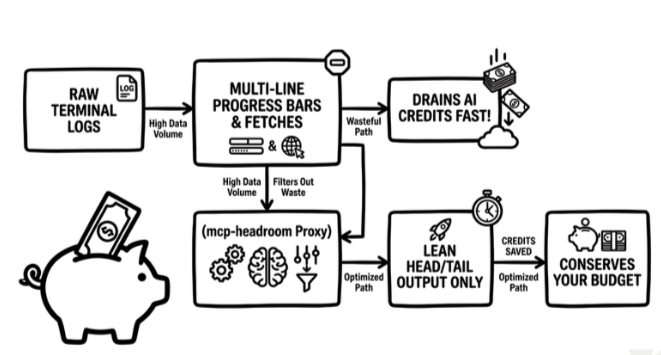
Context Bloating
When an AI agent runs a command that dumps hundreds of lines of installation trackers, compilation logs, or verbose test results, that raw text gets crammed directly into the LLM’s context window. This creates two immediate problems:
The “Lost in the Middle” Phenomenon: LLMs struggle to find relevant information when buried under walls of repetitive log noise. Your agent suddenly forgets your initial instructions.
Token Exhaustion: You burn through your plan’s token rate limits running useless lines of text like
Fetching packages...or progress bars.
To solve this, I built mcp-headroom: a lightweight middleware proxy using Anthropic’s open-source Model Context Protocol (MCP). It intercepts verbose terminal outputs, counts tokens dynamically using tiktoken, and surgically trims the repetitive middle noise while keeping the critical headers and error statuses perfectly intact.
Here is exactly how it works, how the code is structured, and how you can set it up in your local environment over a weekend.
The Core Blueprint: How it Works
Instead of letting Copilot Chat run raw commands in a blind terminal instance, we expose a specialized tool called run_compact_command.
When Copilot needs to install packages, run tests, or inspect logs, it calls our local MCP server via standard input/output (stdio). The server runs the command in a background sub-process, analyzes the output token count, and applies a smart head/tail truncation rule if it exceeds our token budget.
Step 1: Bootstrapping the FastMCP Server
We use the official Python mcp SDK alongside tiktoken to build a clean, production-ready server. Create a file named server.py and set up the structural foundation:
from future import annotations
import subprocess
import shlex
from typing import Optional
import tiktoken
from mcp.server.fastmcp import FastMCP

#Configuration limits

DEFAULT_TOKEN_THRESHOLD = 800 # Token limit before triggering compaction
HEAD_LINES = 20 # Lines to keep from the top
TAIL_LINES = 20 # Lines to keep from the bottom
ENCODING_NAME = "cl100k_base" # Core tokenizer mapping


mcp = FastMCP(
    name="mcp-headroom",
    instructions="Use run_compact_command instead of the built-in terminal for verbose or repetitive shell outputs to conserve token budgets." )

_enc: Optional[tiktoken.Encoding] = None


def _encoder() -> tiktoken.Encoding:
    global _enc
    if _enc is None:
        _enc = tiktoken.get_encoding(ENCODING_NAME)
    return _enc


def _token_count(text: str) -> int:
    return len(_encoder().encode(text))
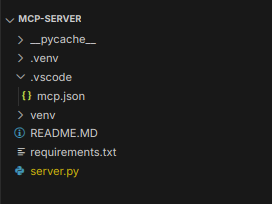
File Tree
Step 2: Coding the Compaction Engine
The heart of this project is the _compact utility.
If an output’s token count crosses our threshold budget (800 tokens), it splits the string, grabs the first 20 lines (where initialization details and version choices live), and the last 20 lines (where compilation status, final summaries, or error stack traces sit).
def _compact(text: str, threshold: int = DEFAULT_TOKEN_THRESHOLD) -> tuple[str, int, int]:
original_tokens = _token_count(text)
if original_tokens <= threshold:
    return text, original_tokens, 0

lines = text.splitlines()
total_lines = len(lines)
head = lines[:HEAD_LINES] tail = lines[-TAIL_LINES:]
omitted_lines = total_lines - HEAD_LINES - TAIL_LINES

# Build an informative placeholder for the model
middle_text = "\n".join(lines[HEAD_LINES : total_lines - TAIL_LINES])
middle_tokens = _token_count(middle_text)
placeholder =
    ( f"\n[... Truncated {omitted_lines} lines of repetitive output " f"({middle_tokens:,} tokens omitted) ...]\n" )

compacted = "\n".join(head) + placeholder + "\n".join(tail)
final_tokens = _token_count(compacted)
saved_tokens = original_tokens - final_tokens
return compacted, original_tokens, saved_tokens
Step 3: Exposing the Tool to Copilot Chat
Next, we expose our core tool run_compact_command using the @mcp.tool() decorator. Notice how detailed the docstring is.
This is crucial because it serves as the natural language prompt that tells the LLM exactly when and why to pick this tool over its native terminal.
@mcp.tool()
def run_compact_command(
    command: str,
    timeout: int = 60,
    token_threshold: int = DEFAULT_TOKEN_THRESHOLD,
    working_dir: Optional[str] = None,
) -> dict:
    """
    Run a shell command, capture combined stdout + stderr, and compact the
    output if it exceeds token_threshold. Prefer this over the built-in terminal
    for package installs, test runners, build systems, or log dumps to prevent
    wasting your active GitHub AI Credits.
    """
    try:
        result = subprocess.run(
            shlex.split(command),
            capture_output=True,
            text=True,
            timeout=timeout,
            cwd=working_dir,
        )
        raw_output = result.stdout + (
            ("\n--- stderr ---\n" + result.stderr) if result.stderr.strip() else ""
        )
        exit_code = result.returncode
except subprocess.TimeoutExpired:
        raw_output = f"[mcp-headroom] Command timed out after {timeout}s."
        exit_code  = -1
    except Exception as exc:
        raw_output = f"[mcp-headroom] Unexpected error: {exc}"
        exit_code  = -1
    compacted, orig_tok, saved_tok = _compact(raw_output, threshold=token_threshold)
    final_tok    = orig_tok - saved_tok
    was_compacted = saved_tok > 0
    banner = (
        f"[Headroom Alert: Saved {saved_tok:,} tokens "
        f"({orig_tok:,} → {final_tok:,}) | exit {exit_code}]"
        if was_compacted
        else f"[Headroom: Output within threshold ({orig_tok:,} tokens) | exit {exit_code}]"
    )
    return {
        "output":          compacted + f"\n\n{banner}",
        "exit_code":       exit_code,
        "original_tokens": orig_tok,
        "final_tokens":    final_tok,
        "tokens_saved":    saved_tok,
        "was_compacted":   was_compacted,
        "headroom_banner": banner,
    }
if __name__ == "__main__":
    mcp.run(transport="stdio")
Step 4: Hooking it into VS Code
To introduce our new server to VS Code’s Copilot Agent ecosystem, add a simple workspace configuration file located at .vscode/mcp.json. This tells the editor where to find your virtual environment's python binary and how to execute the script over stdio:
{
  "servers": {
    "mcp-headroom": {
      "type": "stdio",
      "command": "${workspaceFolder}/.venv/bin/python",
      "args": ["${workspaceFolder}/server.py"]
    }
  }
}

Selected MCP Server
Putting It To The Test
To see the real-world utility of mcp-headroom, I tasked Copilot with an installation command inside an active project environment:
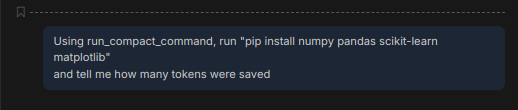
Prompt For Testing
Prompt: Using
run_compact_command, runpip install numpy pandas scikit-learn matplotliband tell me how many tokens were saved.
Initially, the installation payload was heavy enough that it hit our default 60-second execution safety timeout window. Copilot dynamically recognized the timeout failure, read the exception response from our server, automatically modified its parameters, and gracefully re-executed the command with an extended timeout limit.
Here is the exact raw JSON object returned back across the protocol bridge to the IDE:
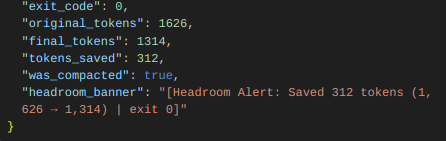
JSON Output
The Hard Metrics
By actively flattening out the redundant stream tracking metadata, look at what happened during this single standard package installation task:
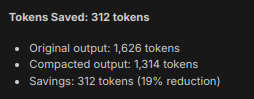
Statistics
Instead of drowning in 14 lines of identical progress tracker cache outputs, the underlying agent model instantly parsed the clean text output, verified the exit code, and confirmed that numpy, pandas, scikit-learn, and matplotlib were successfully initialized in the local environment.
Key Takeaway
Building your first MCP server can feel intimidating, but beneath the buzzwords, it’s remarkably elegant: just a clean JSON-RPC bridge built on top of simple standard I/O streams. You don’t need complex cloud infrastructure to give an LLM superpowers — you just need a way to translate your local system’s reality into data the model can actually parse.
In an era where developer AI platforms are moving toward strict, usage-based credit models, token optimization is no longer optional. It is a fundamental engineering constraint. By inserting a custom, token-aware lens between your local workspace and your AI assistant, you achieve three things simultaneously:
Protect your context boundaries from drowning in raw log noise.
Keep your agent sharp and clear of “Lost in the Middle” hallucinations.
Defend your wallet against runaway token consumption.
The Horizon is Wide Open
Log compaction is just the entry point. The research into Agentic AI workflows is an ongoing, rapidly shifting space. We are moving away from the idea of a single “all-knowing” AI assistant and moving toward an ecosystem of modular micro-tools.
Depending on your engineering needs, you can chain entirely different MCP servers together to create a specialized local network for your agent:
┌─── mcp-headroom (Token Compactor)
                  ├─── mcp-db-sleuth (Schema Introspection)
AI Coding Agent ──┼─── mcp-guardian  (Architecture Linter)
                  └─── mcp-git-lens  (Smart Commit Automator)
By swapping and combining specialized protocol hooks, you can craft a hyper-contextual environment tailored to your exact tech stack (environment tailored to how you code).
The codebase for mcp-headroom is entirely modular. You can easily expand its heuristics dictionary to handle massive multi-stage Docker builds, heavy npm install structures, or deep database query dumps.
Clone the code, hook it into your workspace, and start experimenting. Let me know in the comments how you’re configuring your MCP pipeline and exactly how many tokens you manage to save!


